

15 Things You Never Knew Your Xbox Could Do
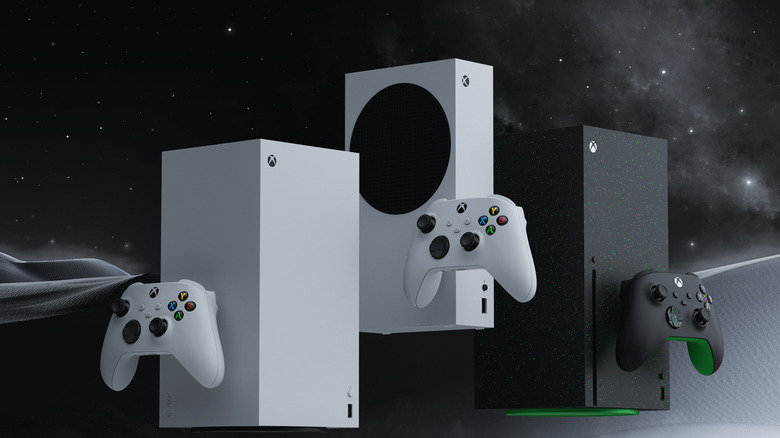
The Xbox Series X and S are not just little boxes for playing games; They are thoughtfully engineered, comprehensive entertainment hubs. You should stop thinking your console is only built for good graphics and start seeing it as a deep, flexible computer. Its operating system is always being fine-tuned, updated, and expanded. Like your smartphone, these devices are packed with hidden capabilities, smart service integrations, and crucial quality-of-life tweaks that let you do much more than just game.
That's easy to forget when this console generation brought huge power and incredible graphics. Systems like the Xbox Series X or Series S offer a quick, solid-state drive (SSD), 4K gaming, and 120 frames per second (fps). These high-impact specs are the core selling points and make a difference with big titles, but they're not the only factor.
If you don't explore the available options, you're missing out on huge hidden convenience, faster performance, and great customization. We look beyond the initial flashy launch specs and dive into the clever, useful, and unexpected features baked right into the operating system.
Suspend multiple games with quick resume
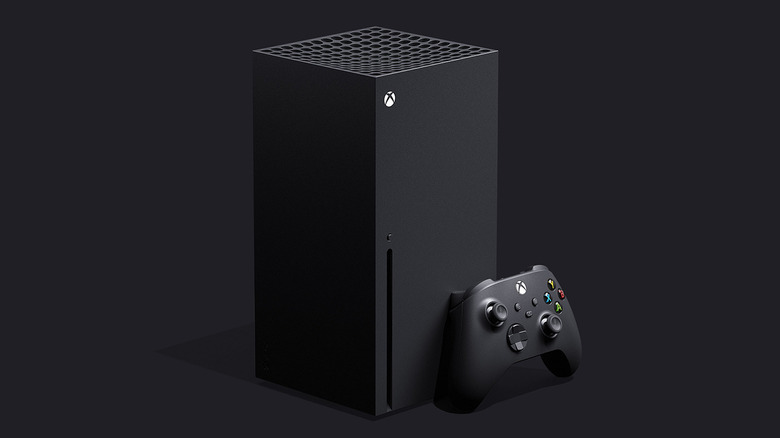
One of the best parts of the current console generation is the ability to suspend several games at once using Quick Resume. While the PS5 can only handle pausing a single session, leaving you tethered to one active game, the Xbox Series X/S lets you use this feature to keep multiple digital adventures running in the background simultaneously.
Think of it as creating a save state for the entire application rather than just some internal checkpoint within the game world. You won't have to deal with those menu screens or loading prompts that typically kill the immersion of the gaming experience.
Since the system writes the game state directly to the internal storage, it can survive a complete loss of power. This means you can pack up your system for a trip or move it to a new room without losing your exact spot in a game.
Link two controllers as one with Controller Assist
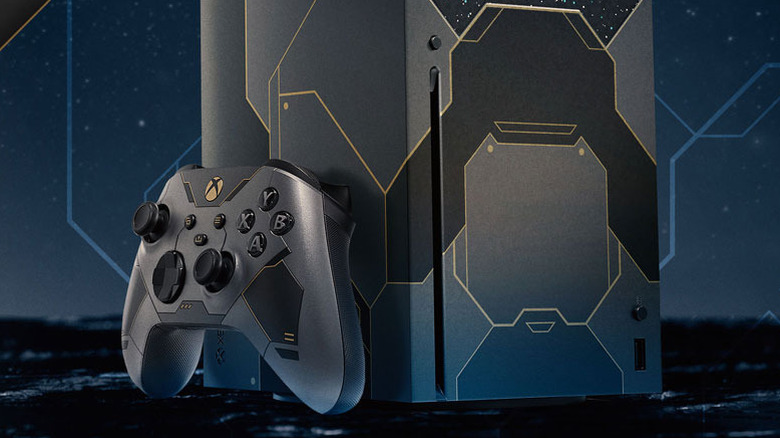
You're probably used to standard multiplayer where everyone gets their own character, but Copilot is completely different. This mode lets you tie two controllers together. The system sees this merger as just one input device, so both devices are sending commands to the exact same character or menu screen at the same time.
If you want to link two controllers on your Xbox, the first thing you need to do is get both devices connected. Grab your main gamepad, hit the Xbox button, and go to Profile & system, then Settings. You'll find the Controller settings under Accessibility. Once you're there, select Turn on Controller Assist.
It's fantastic if you need to help your kid finish a frustrating level, but you don't want to actually snatch the controller away from them. There are many creative uses for an Xbox controller, but this is a good one for siblings or parents who want to help their kids in hard sections or simply bond over a game.
Turn your console into a dev kit
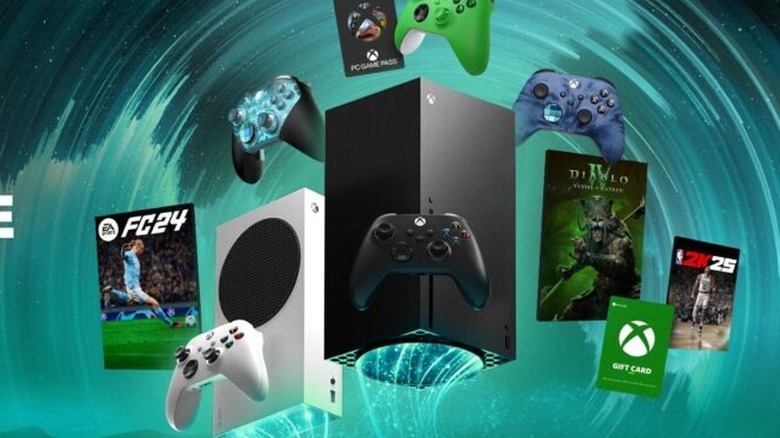
Sure, the regular Xbox Series X/S retail interface is great for hitting up the Microsoft Store and Game Pass, but there is a hidden part of the console that ramps up what it can do beyond just playing games. You can shift your device into a special sandbox environment that was initially created for those making software. It lets the hardware operate like an open platform for you to mess around with.
You have to sign up on the official Windows site and pay a small $19 fee, but you'll get an account you can use from then on. That formally registers your specific machine for dev purposes.
This whole thing is completely legit, and it makes sure that the regular retail side of your console is entirely separate from the development part, so your game library stays safe while you check out the new potential. What this does is unlock the power to install and run homebrew software. These are community-made apps and tools that Microsoft doesn't distribute through the regular storefront, and you can then sideload them into the console.
Download games you do not own yet

One of the most underrated things the modern Xbox ecosystem does is let you separate installing a game's data from actually owning the license for it. That feature really cuts down on the frustration between buying a game and getting to play it right away. The key to doing this is the Xbox mobile app. It's incredibly helpful because you can queue up a download for basically any game available in the Microsoft Store, even if you haven't bought it yet.
After dealing with shipping, you normally put in the disc just to sit through hours of installation and patching before you can actually start playing. However, this feature allows you to proactively install the physical title while you wait for your copy to arrive.
Just search for the title in the mobile app and push the installation to your console ahead of time. This handles those truly huge file sizes associated with current AAA games long before the package even shows up. This forward-thinking approach means that once the disc finally shows up, your console just needs it to receive the disc to play.
Dim the lights with night mode
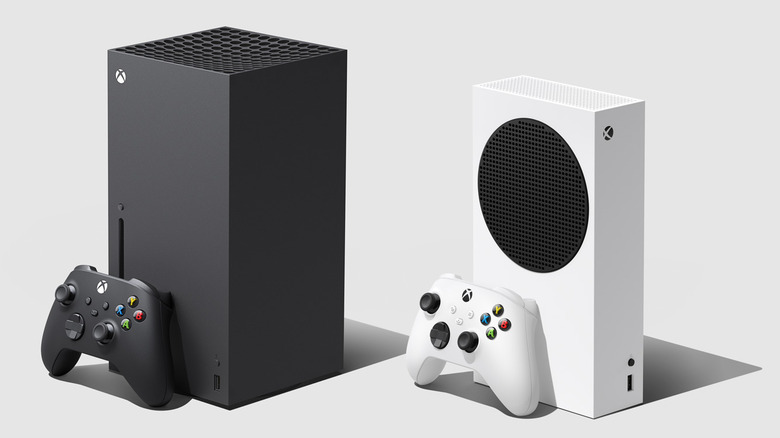
One of the most practical tools actually fixes a huge physical annoyance you find when gaming in the dark. That Xbox logo on the controller and the console itself is notoriously bright. If you like to game in a dimly lit home theater or bedroom, that static, piercing light seriously breaks the immersion and becomes genuinely distracting.
Fortunately, the System Settings have a Night Mode that lets you easily dim these LEDs or just switch them off completely. This customization gives the setup a much stealthier aesthetic, making sure the device isn't stealing focus from the action on screen. It also brings in a blue-tint filter, which really helps cut down on eye strain when you're gaming late at night.
While Dolby Vision and Auto HDR use smart processes to make game highlights brighter and contrast look sharper, Night Mode acts as a necessary counterbalance. This feature is more beneficial for your health, as it helps prevent eye strain and overuse.
Double the frame rate of old games
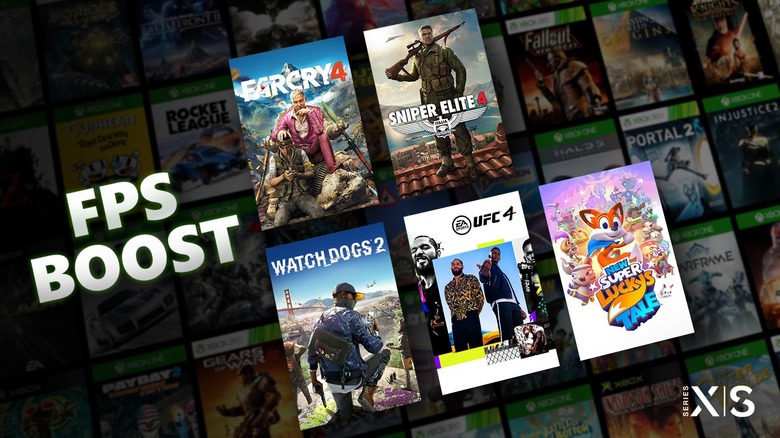
The console has this tool called FPS Boost, and it completely changes what it feels like to play older favorites. FPS Boost operates at the system level, changing how backward-compatible games run without requiring the original developers to modify the code. This is one of those underused features that can improve your games.
FPS Boost fixes these old limitations outright. It can grab those classic titles that were locked at 30 frames per second (fps) and force them to run much faster overall, pushing them to 60 or even 120 on your new hardware. The frame rate jump isn't just about things looking smooth, though; it also seriously cuts down on input latency. This makes the game feel tighter and more precise than it ever could have on the original system.
Since this process uses the power of the new machine to simply override those previous locks, you get a performance that can match what we expect today. This feature makes sure that backward compatibility doesn't mean dated, and some claim it doubles the frame rate.
Add HDR to non-HDR titles
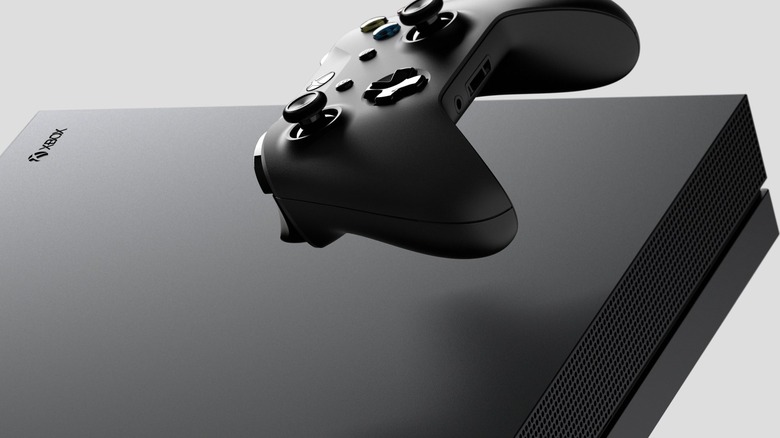
Auto HDR uses machine learning to apply High Dynamic Range imaging to older games that were created long before HDR was even a thing. This makes original Xbox and Xbox 360 titles look better by automatically balancing highlights and shadows. Back when these retro titles were first released, developers were constrained by the limitations of Standard Dynamic Range, which offered a much narrower spectrum of brightness and color.
Lighting in older games often looked flatter because they were in SDR. Standard Definition lacks that sharp distinction between the darkest shadows and the brightest whites compared to modern releases. However, by using an algorithm trained on high-dynamic-range imagery, the system can identify distinct elements within a frame. This could be the shining glare of the sun or the subtle glow of a streetlight, but it will boost peak brightness and contrast values without any code changes from the creators.
This basically modernizes the graphical output of titles that are sometimes decades old. Unlike a generic filter that might oversaturate the entire screen, the machine learning technique ensures the improvement is always accurate.
Project your PC to the Xbox
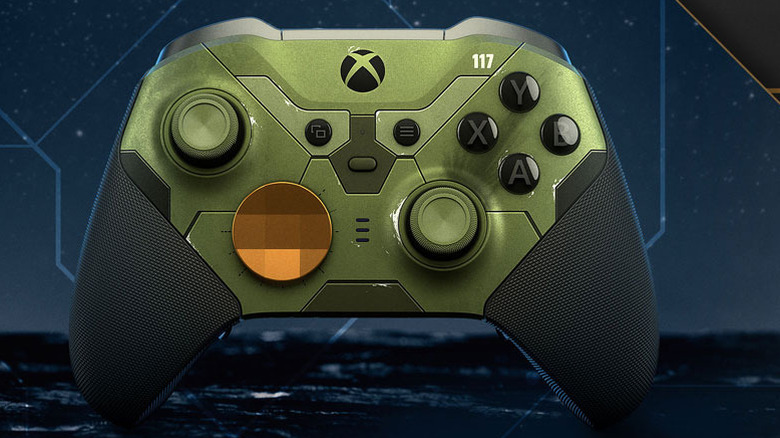
Everyone knows you can pull your Xbox games over to your PC, but the reverse is possible, too. This really bumps up what your hardware can do beyond just playing console games, and if you're a PC gamer who prefers the feel of a controller on a couch, you don't have to settle.
To get this going, you just need to hit up the digital store and grab the Wireless Display app for your console. If you've been using Microsoft stuff for a while, you might remember this utility as the Connect tool. It's the same basic idea; it switches your Xbox into a Miracast receiver. Once that feature is on, your console basically turns into a wireless hub. You can beam your Windows PC or Android display right to your TV, no annoying cables necessary.
That wireless freedom means you skip the hassle of lugging around desktop towers or messing with HDMI cords just to use a bigger screen. This works perfectly for throwing up a browser window, which is awesome for watching stuff together, practicing a presentation, or getting to web media that doesn't have its own Xbox app.
Transfer games over the local network
If you've got a couple of Xbox consoles in your house, you don't have to download the same game repeatedly. With modern games easily hitting 100GB or more, moving full games from one machine to another is time-consuming. Luckily, the Xbox operating system has a clever fix for this problem, creating a connection right there between your devices.
This feature, called Network Transfer, lets one Xbox copy games and apps straight over to the other console on your home network. Instead of making both machines grab that massive data from Microsoft's servers, the system finds the files already on your local environment and zips them across your LAN connection. That's usually much faster than relying on your standard internet speed. Just make sure to enable it in your backup & transfer settings.
Not only is this method quicker overall compared to downloading from the public internet, but it also helps you save bandwidth. If you have a metered connection, downloading something huge could eat into your data allowance, which could hurt your speed even if you speed up your Wi-Fi.
Customize the guide tabs
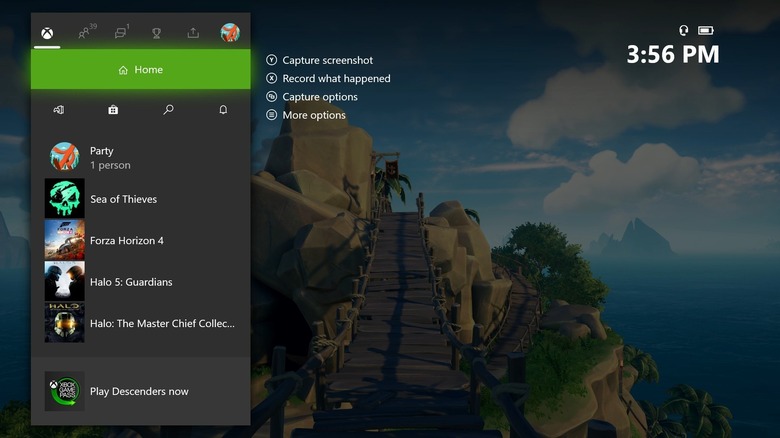
You might not realize it, but one of the most useful navigation tools is right there on your console's main screen. Xbox Guide is that convenient menu that immediately appears when you tap the Xbox button on your controller. You could just stick with the factory settings for this menu, but you should know that the Guide is completely customizable to match exactly what you need and how you play.
You can rearrange the tabs so your favorite features are easy to reach, instead of constantly scrolling past things you never use. You can do this by going into your Account Settings, heading to General, and then Personalization. Use the Customize the Guide option to modify the layout.
You can reorganize the interface so the tools you rely on most are instantly available. This adjustment is crucial if you're trying to document your gameplay, because it guarantees much faster access to recording tools the second something awesome happens. It's also great for players who are focused on boosting their Gamerscore since you can change it so it shows achievements first.
Control the console with digital assistants

If you've been using Microsoft stuff for a while, when you think about talking to your Xbox, your mind probably jumps straight to the old Kinect sensor. That really defined what the Xbox One was supposed to be when it first launched. Things have changed quite a bit since then, but the idea of hands-free navigation is still really important and still lives on in other devices.
Voice commands definitely haven't vanished; They've just moved over to the smart devices you already have sitting around your house. Xbox chose to fully support Google Assistant and Amazon Alexa instead of making you use a specialized microphone.
If you want to get voice control working, head to your console's Settings, then Devices & Connections, and finally Digital Assistants. Make sure you check the Enable Digital Assistants box. Set your power mode to sleep from there. Then, open your phone and link the accounts in the mobile app for whichever ecosystem you prefer.
If you're using Google Assistant, fire up the Google Home app. Tap the plus icon, select Set Up Device, and then choose Works With Google. Search for "Xbox" in the list, and then sign in using your Microsoft account. If you prefer Amazon Alexa, open the Alexa app, go to More, and hit Skills & Games. Search for the specific Xbox skill, hit Enable To Use, and sign in to finish the pairing process.
Find teammates with built-in LFG
Throwing yourself into random matchmaking usually just lands you in frustrating sessions full of people who won't cooperate or lobbies so silent you wonder if anyone's actually there. A lot of us just accept this unpredictable chaos, but the Xbox system has a smart fix that many players miss. The Looking for Group (LFG) feature is built right into the console to help you find friends and good teammates.
You can basically post detailed wanted ads or browse existing ones, specifying exactly the kind of player needed. This guarantees everyone who jumps into your party is clear on the expected playstyle, how hard you want to go, and what the goals are for that session. You can access the whole thing right from the game hub.
You can filter your potential teammates using specific requirements. For instance, you can demand they have a "microphone required" tag or "no trash talk." This could be a great way to make new friends, but keep in mind that you should never give your personal information to anyone you don't know. This is still a situation of playing with a stranger.
Record hour-long clips to an external USB
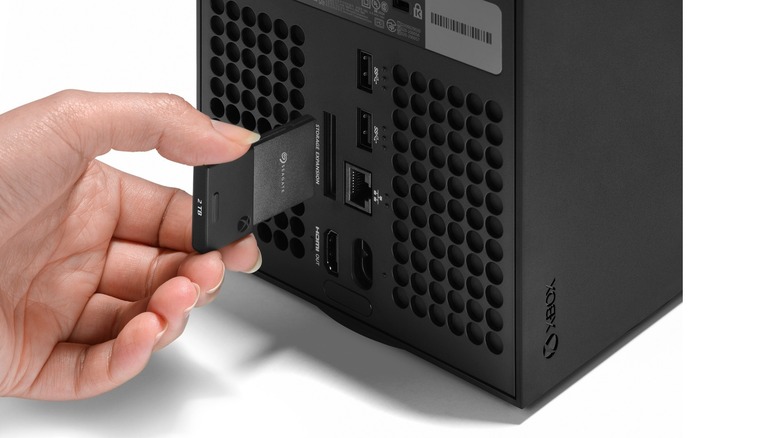
If you're a content creator or just like saving your recordings, you probably find the default recording limits on modern consoles totally restrictive. While the Share button made capturing gameplay easy, sticking to the console's built-in SSD creates a serious bottleneck if you want high-quality video. You have to either drop the video quality just to capture longer clips or deal with the totally frustrating situation where your session stops after a short time.
The Xbox Series X/S setup actually has an awesome workaround that people often miss. The trick is simply moving that data to an external source. Once you connect a USB 3.0 drive and format it for media capture, you completely get around those file size restrictions that the internal storage imposes.
It's absolutely crucial that the drive use the USB 3.0 standard, since you need those fast data transfer rates for real-time video encoding. Also, remember it has to be set aside only for media, not for storing games. When you're done, you can capture a full hour of uninterrupted 4K gameplay if you have the space.
Improve visuals with Dolby Vision
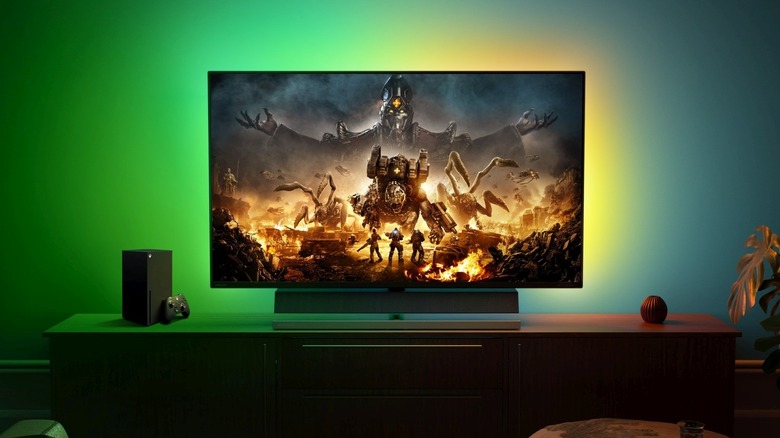
Next-generation visual fidelity tends to focus heavily on pixel counts and resolution, but the true leap in graphics comes from how a system handles light and color. HDR is designed to expand the contrast and color palette of video games to look much closer to what the human eye actually sees. Just make sure your settings on the console are right.
Microsoft's hardware carves out a distinct advantage, especially for people focused on building a great home theater setup. The Xbox Series X/S was the first console to support Dolby Vision for gaming, bringing cinema-grade visual standards right into your games. Dolby Vision is just one of the types of HDR.
Instead of relying on one global setting for your whole play session, this technology uses metadata to adjust things like brightness, contrast, and color on a frame-by-frame basis. This lets the console tell the display to change its tone mapping instantly. This perfectly optimizes the picture for the specific scene being rendered at that exact millisecond. Just remember, you'll need a compatible TV to do this.
Smart Delivery gives the best version
Buying games when you own multiple generations can be confusing, especially when digital stores are clogged with multiple copies of the same game for different systems. This lack of clarity means you have to be really vigilant, checking menus and file details constantly just to make sure you aren't missing out on those crucial graphical tweaks or performance improvements.
Luckily, Microsoft uses Smart Delivery to guarantee the console only grabs the assets it needs, which basically removes human error from the installation process entirely. This intelligent system acts like a guard between the Microsoft Store and your hard drive. It scans your hardware and delivers the exact data package specifically tailored for what that device can handle.
What's great is that you aren't wasting precious SSD space downloading those huge, high-resolution textures your console can't even display. Also, you're not stuck installing a lower-quality, compressed version when you have a powerful machine.