

10 Things You Should Know Before Buying A Roku Streaming Stick
We may receive a commission on purchases made from links.
Whether you've got a smart TV or an older "dumb" TV, a streaming device is sort of like a brain transplant for your entertainment setup, giving you access to the world of streaming content. There are several different brands, each of which has a collection of devices with different functionality and at different price points, and some of the most popular are made by Roku.
Roku launched its first streaming player in 2008, just a year after Netflix launched its streaming service. At the time, people largely watched streaming content on computers because TVs mostly weren't capable of connecting to the internet. Streaming devices fixed that problem before smart TVs had come into their own.
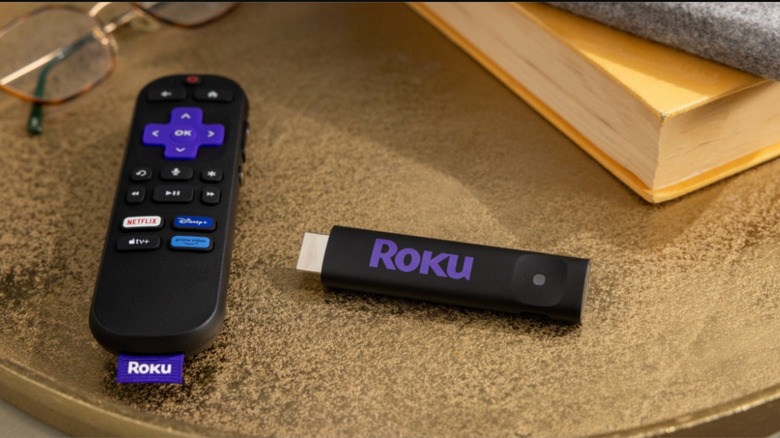
The first Roku Streaming Stick came out in 2012 as part of the company's second generation of devices, and updated versions have come out in subsequent generations. Presently, we're in the 11th generation of Roku devices and the company has unveiled yet another Streaming Stick. It's affordable but it's also pretty barebones. Here's what you need to know before you buy one.
Bluetooth audio
Television viewing can be a social affair, with friends and family gathered in the living room with snacks, to watch a movie together. It can also be a solitary activity. Whether it's the middle of the night or you're just trying to destress on your own, sometimes you want to watch your shows without disturbing or including the other people around you. For that, you need a way to get audio from your TV to a pair of headphones.
Some higher-end Roku devices allow for private audio, with an audio jack built right into the side of the remote control. You can connect a pair of wired headphones to the remote and get a private audio feed right in your ear. However, you don't actually have to spring for a nicer model to get audio in your headphones.
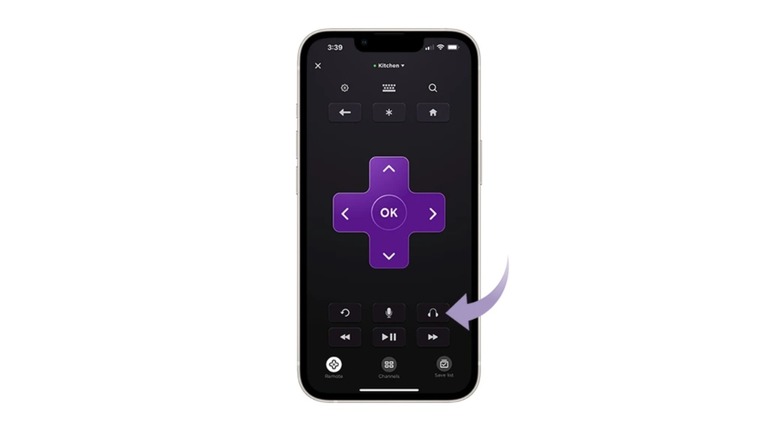
If you download the Roku app and connect it to your streaming device, you can use your smartphone as a remote control. The Roku app also has a headphone mode which lets you connect your favorite pair of wired or Bluetooth headphones for private audio.
No power adapter included
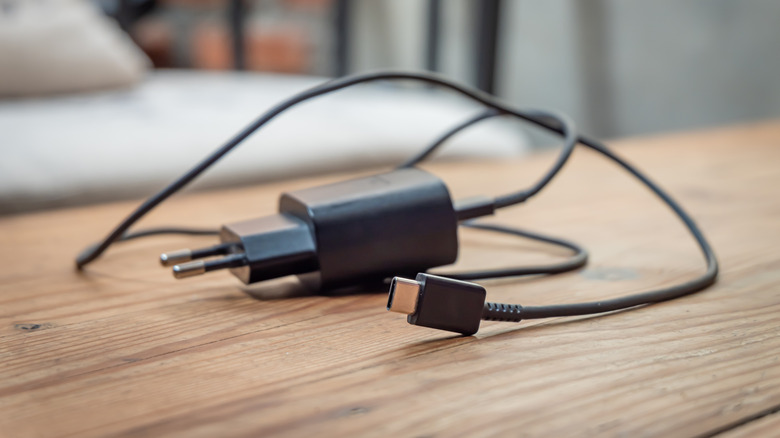
These days, if a device doesn't have a permanently attached power cord, it usually comes with a USB charging cable and a power block. Of course, because that's becoming an increasingly common standard, most of us are awash in charging cables and power blocks. You probably don't need another one. With that in mind, Roku isn't offering a power block with its newest Streaming Stick.
In the box, you'll find the Streaming Stick, a voice remote control with batteries included, and a USB power cable, but no power block. That's because, in most situations you don't need a power block for a Roku Streaming Stick. The stick plugs directly into your TV's HDMI port and it draws power from the included power cable. You'll plug one end into the Streaming Stick and the other end into your TV's USB port.
If your TV doesn't have a USB port or if the port doesn't deliver enough power, you'll need to supply your own power block and plug the cable into a wall outlet.
No HDR support
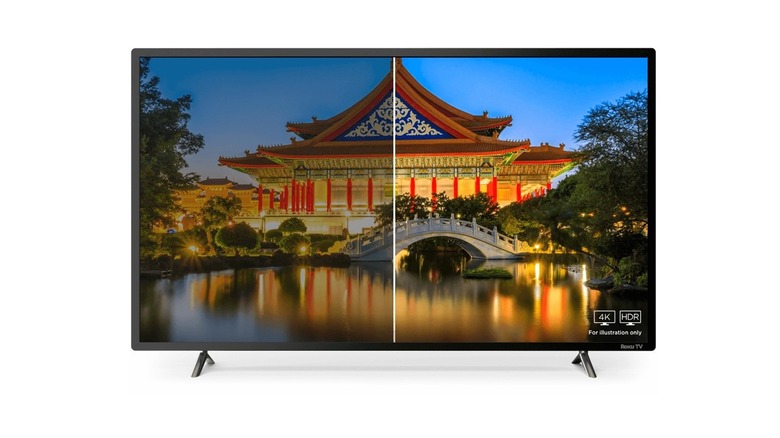
If you've been paying attention to the evolution of television displays, you've probably noticed the acronym HDR showing up in recent years. Short for high dynamic range, HDR expands the range of light, dark, and colors to create an improved image.
There are several different HDR formats, some of which are proprietary or require a license to use. The type of HDR you have will depend on the type of TV you've chosen. Regardless of the format, the goal of HDR is to provide more colors and greater contrast. When rendering the picture, it makes bright things brighter, shadows deeper, and pulls from a greater range of colors to improve your picture overall.
HDR took over from standard dynamic range (SDR), which presents pictures with a preset palette of colors, contrast, and brightness. Where older TVs are stuck with the palette they've got, HDR displays can adjust in real-time, using metadata, to give you the best picture possible. But to make it work while streaming, you need HDR support in your streaming device too. While more advanced Roku devices support HDR, the Roku Streaming Stick doesn't. So, even if you have a compatible TV, you won't necessarily get the best possible picture quality.
Live TV
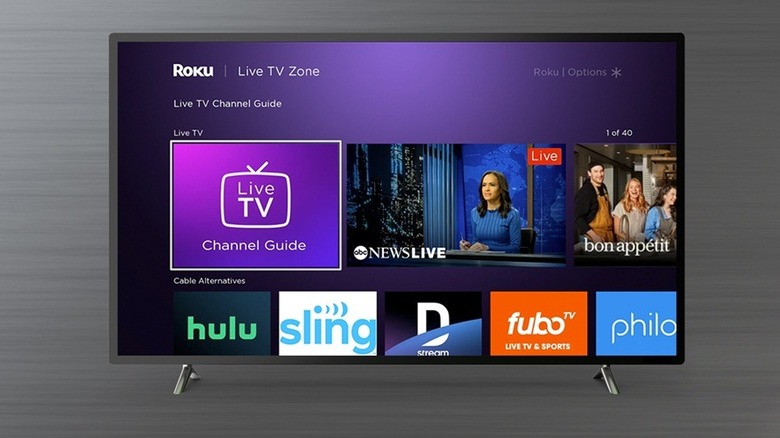
While many people use their Roku device to access streaming platforms like Netflix, Hulu, and HBO Max, a Roku Streaming Stick also gives you access to live TV. You'll find more than 500 channels of content you can click through.
Channels are grouped into categories like Recommended, News, Movies, Game Shows, Sports, Family Entertainment, and more. There are even dedicated channels for specific shows, so if you want to watch "Teenage Mutant Ninja Turtles" nonstop, you can. You can also mark channels as favorites, then go to your favorites section to see a list of only the channels you've saved. That way, you don't have to scroll through hundreds of channels to find the ones you like.
You get access to live TV for free after setting up your Roku account. So, after the small initial investment, you'll be able to watch content of all genres without paying a dime using the Roku Streaming Stick.
Limited storage
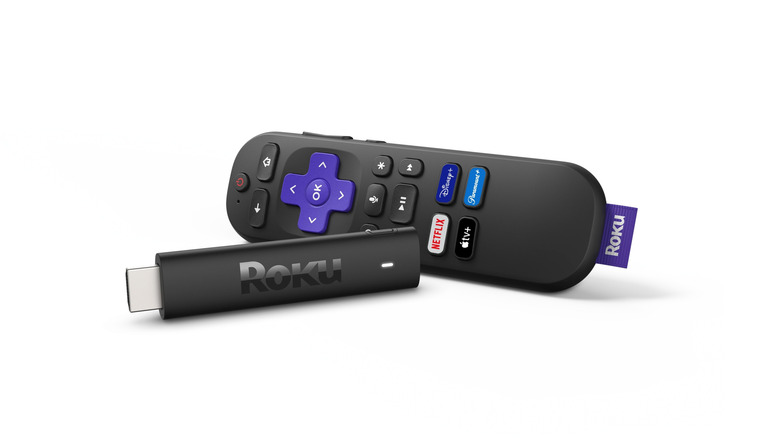
One of the ways Roku keeps the Streaming Stick price low is by limiting its internal memory. The entry level streaming device only has 512MB of RAM to run all of your streaming apps, the user interface, and everything else it has to do.
While the onboard memory is usually sufficient for everyday streaming, you can gum up the works by downloading too many apps or if you haven't reset your device in a while. You can get error messages like "not enough memory," "can't run app," or "insufficient memory" when trying to open an app.
Usually, a power reset fixes any memory problems you might have. Don't just turn your Streaming Stick off and on again. To reset your device, pull the power cord for at least 10 seconds, then plug it back in. Alternatively, you can do a system restart from the Settings menu by selecting Power, then System Restart. If you still get a memory-related error message after a reset, you may need to remove an app or two to clear up space.
There are three types of Streaming Stick
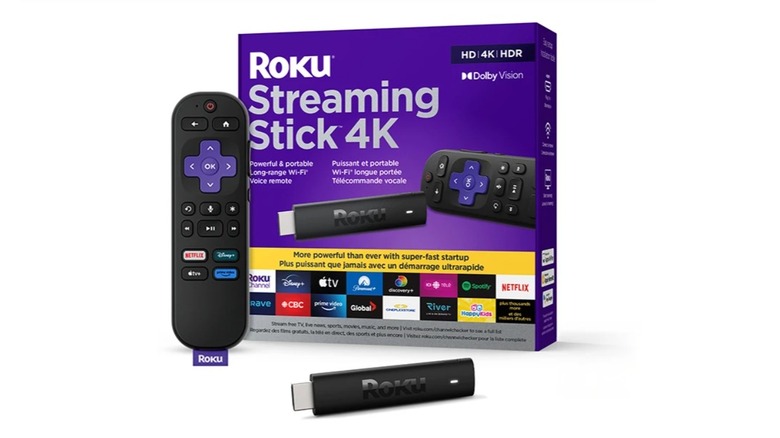
The Roku Streaming Stick is the most basic and most affordable offering in Roku's stable, at just $29.99, but it has a couple of siblings bearing the Streaming Stick name. The Roku Streaming Stick Plus and the Roku Streaming Stick 4K run for $39.99 and $49.99, respectively. Both models have additional features and upgraded functionality when compared to the basic Roku Streaming Stick.
For instance, the Roku Streaming Stick Plus and Roku Streaming Stick 4K support 4K and HDR content, while the basic Streaming Stick doesn't. The Roku Streaming Stick 4K also has long-range Wi-Fi, improving its ability to connect to your internet router from a distance.
Despite the difference in price and functionality, you'll still get access to all of the same great content from Live TV and your favorite streaming services, no matter which model you choose. Fortunately, Roku offers a device comparison so you can choose the streaming device that makes the most sense for your TV setup.
No USB port
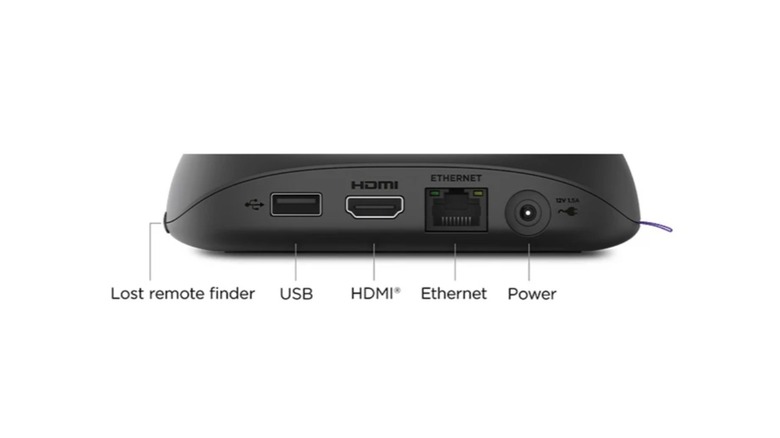
More advanced Roku devices, like the Roku Streambar and Roku Ultra (pictured above), have a USB port that lets you plug in an external storage device and play downloaded content using the Roku Media Player.
You can download the Media Player from the Roku Channel Store or it may be pre-installed on your device. You can use it to watch personal video files, view photos, or listen to music. When you insert a flash drive or external hard drive to your Roku's USB port, you'll be prompted to download the Roku Media Player, if you haven't already.
You can also use the USB port to pause and rewind Live TV. You'll need a dedicated USB 2.0 compatible flash drive with at least 16GB of storage. That means the flash drive can't have any movies, photos, or other files saved on it. You can rewind up to 90 minutes of content to catch up on what you missed. If you want these functions, you'll need to get a more advanced Roku device, because the Roku Streaming Stick lacks any USB port.
No fast app launch
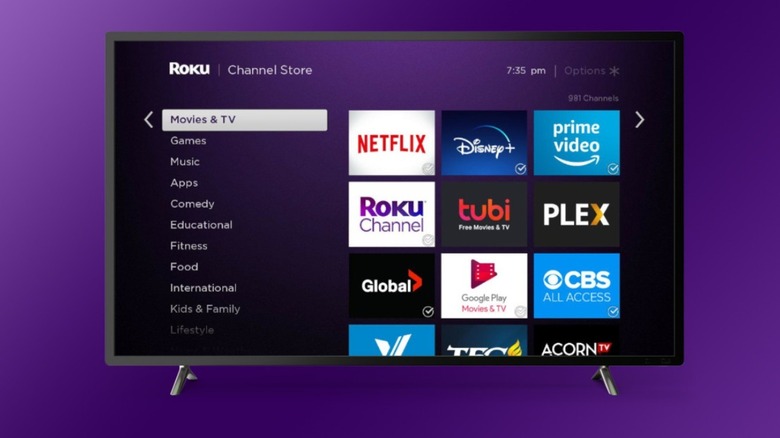
Most of Roku's streaming devices have "fast app launch" as a listed feature, but the Roku Streaming Stick lacks this feature. Unfortunately, Roku has frustratingly little information on what precisely fast app launch is or does. That makes it unclear how much of a difference it makes in user experience, but it's something to be aware of before you pick up a Roku Streaming Stick.
It seems like a reasonable assumption that fast app launch refers to improved functionality which makes launching apps smoother. While the Roku Streaming Stick lacks fast app launch, there isn't a huge difference in performance when streaming movies and TV shows.
The lack of fast app launch probably isn't a deal breaker if you're just looking for a streaming device to watch your favorite shows. Worst case, you might have to wait a little bit longer for your streaming apps to open, but they still launch within a few seconds.
No Dolby Vision
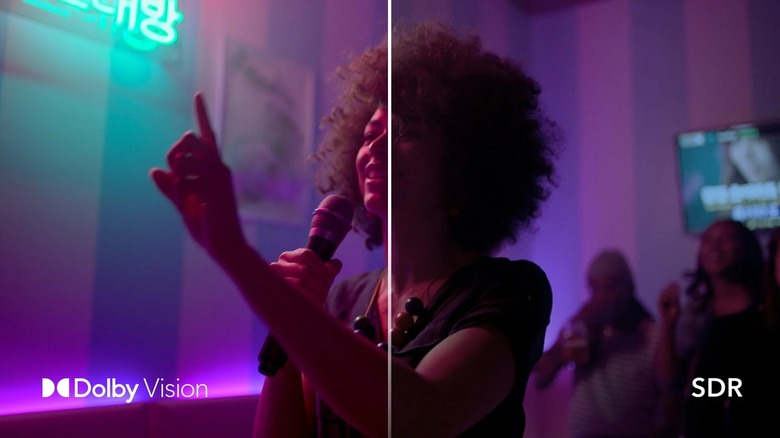
Dolby Vision is similar to HDR, but it's a proprietary standard developed by Dolby Laboratories. Much like HDR, it improves the brightness, color spectrum, and contrast of the images on the screen. It makes images look more realistic and crisp, as if you're actually there. Dolby Vision even takes into account the service, devices, and platforms you're using to optimize the picture quality for your specific setup.
Whether you're watching movies, your favorite TV shows, or playing games with your friends, Dolby Vision gives you one of the best pictures available on the market. It's less common than other formats because manufacturers have to pay a fee to have their devices Dolby certified. Meanwhile, other HDR standard like HDR10 are free to use.
More advanced Roku devices like the Roku Ultra and the Roku Streaming Stick 4K have support for Dolby Vision, but the Roku Streaming Stick doesn't. So, if you're running a display that's Dolby Vision certified, a Roku Streaming Stick may not be the best choice for you.
Streamlined design
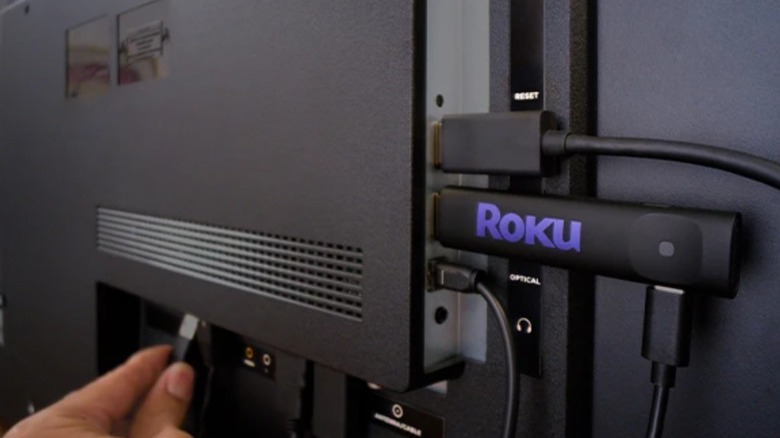
Perhaps the biggest selling point for the Roku Streaming Stick, aside from its affordability, is its low-profile design. Previously, Roku's entry level devices were wedge shaped and unwieldy. While they work well for streaming content, they lack something aesthetically.
When hooking up those older devices, you need to run an HDMI cable to your TV and a power cord to your outlet. Additionally, the wedge shaped Roku's almost never sit flat on a TV stand or shelf. People often have to leave them dangling from beneath the TV or sitting awkwardly on a surface.
The Roku Streaming Stick, by contrast, sticks directly into the HDMI port of your TV and, provided you have enough power in your USB port, the entire setup can hide nicely behind your TV set for a cleaner look. It's one of the sleekest designs Roku has ever offered and it's an effective solution for transforming your television viewing experience.