

4 Things You Can Do With Your Fire TV Stick's Micro-USB Port
We may receive a commission on purchases made from links.
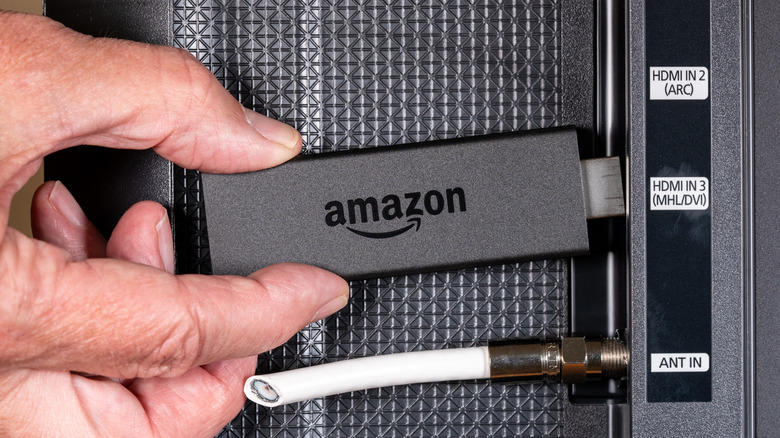
If you want to convert your ordinary TV into a smart one, then there are ways. Options such as the Google TV Streamer (not to be confused with the Chromecast), and the Apple TV box come to mind, but the more affordable alternative is usually Amazon's Fire TV Stick. This device supports many of the same streaming platforms such as Netflix, Apple TV, and (naturally) Prime Video. In addition to paid streaming platforms, you can also access free content from apps like The Roku Channel and Pluto TV.
Aside from that, Amazon's offering is relatively straightforward to use and features a simple enough setup, as you just need to have an active Wi-Fi connection. You also get access to Alexa, Amazon's voice assistant. If you want to find out the weather forecast or look up a specific recipe, you can have Alexa do the work for you. You an also have it play your favorite tunes from any number of compatible music streaming platforms.
There's one thing you shouldn't overlook, though: One of the good things about an Amazon Fire TV Stick is that it comes with a micro-USB port. The truth is, however, that if you're not using that smaller port, you're missing out on some hidden but useful functionality.
Connect a micro-USB OTG splitter
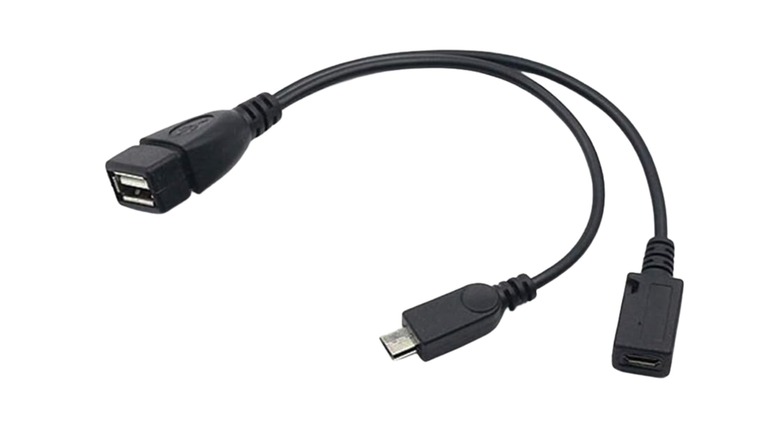
Since the Fire TV Stick requires a constant supply of electricity via its power adapter, the micro-USB port is usually always occupied. Thankfully, the market is full of options to bypass this limitation. You can purchase a simple Micro-USB On-The-Go (OTG) splitter cable, which will transform the single micro-USB port on your Fire TV Stick into two different functional ports while still providing the Fire Stick power.
This type of dongle unlocks a wide variety of usability for the micro-USB port. For instance, you can attach an external USB storage device and watch videos that way. You can also use the extra port for charging any number of USB-charged travel gadgets, which is great in a pinch. Although you won't get blazing fast charging speeds from this additional port, it provides you an option, which is quite handy if you forget your universal adapter at home while on the road.
Another great thing you can do with the extra USB port is to connect an external mouse and keyboard. This can come quite in handy when using a web browser or doing any kind of typing on your TV. The best part about this is the majority of USB peripherals are plug-and-play. With no setup or configuration required, you can just plug in your device, and it's ready to go.
Connect to Ethernet
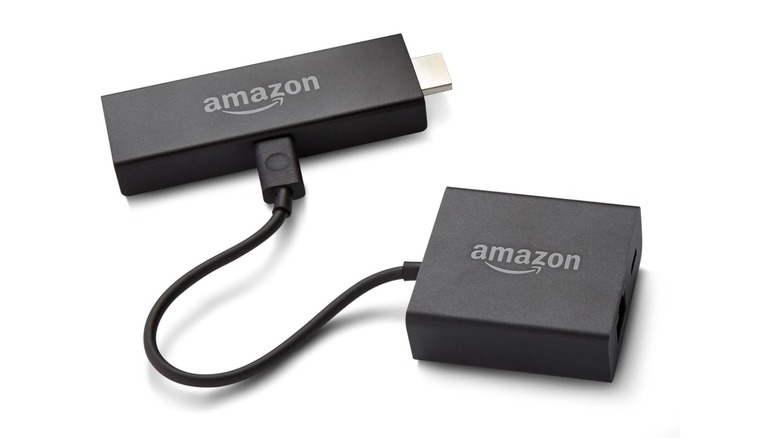
Another good use of the micro-USB port on the Fire TV Stick is to use it to connect to an Ethernet cable. This can be a huge benefit to anyone with inconsistent home Wi-Fi speeds; if you're struggling to stream content on your Fire TV Stick due to spotty wireless internet, you can use a micro-USB Ethernet adapter to establish a faster and more reliable connection. While all versions of the Fire TV Stick have built-in Wi-Fi, connecting directly via Ethernet will always give you a better, more consistent, and more reliable internet connection.
Amazon itself offers an official Ethernet adapter. However, there are plenty of third-party Ethernet adapters that you can grab from various e-commerce websites. While official Amazon adapter is limited to speeds of 100 Mbps, one of these third-party adapters that support much higher speeds might be ideal — especially if you have a high-speed fiber connection at home.
Do note that you won't get the full speed of your internet connection because the adapter's USB port acts as a limiter. As Fire TV Sticks rely on the USB 2.0 interface, the internet speed will be pegged at a theoretical maximum 480 Mbps from your Ethernet connection. Even with such a limitation, this bottleneck is nearly five times the speed of the official Amazon adapter — great for streaming 4K content.
Sideload apps directly
The Fire TV Stick limits itself to the Amazon Appstore, but you can sideload third-party Android apps to unlock the device's full potential. The most common way is to use the Downloader app that fetches files using an internet connection. While this is a nice feature for installing single apps, the micro-USB port offers a superior method for power users who want to install multiple apps without typing long URLs with a remote. You can unlock this method by using your Android phone in conjunction with your Fire TV Stick's micro-USB port.
However, before you transfer these APK files, you should first turn on the option on your Fire Stick to allow their installation. For this, you need to head over to Settings > My Fire TV > About, then repeatedly press the Select button on your remote around 7 times until you see a "You are now a developer" message. Head back to My Fire TV, select Developer Options, and then Install Unknown Apps. After this, you can download APK files on your Android device, transfer them to a USB stick, and then connect to the micro-USB to OTG connector.
Now, you need to download a file manager app to your Fire TV Stick, such as X-plore File Manager or Total Commander, to install these APK files from the USB stick to your streaming device. This certainly does feel like a number of extra steps, but one good thing about installing apps via the micro-USB port is that this method is particularly useful for older versions of apps that aren't easily available via the Downloader browser.
Expand your Fire TV Stick's storage
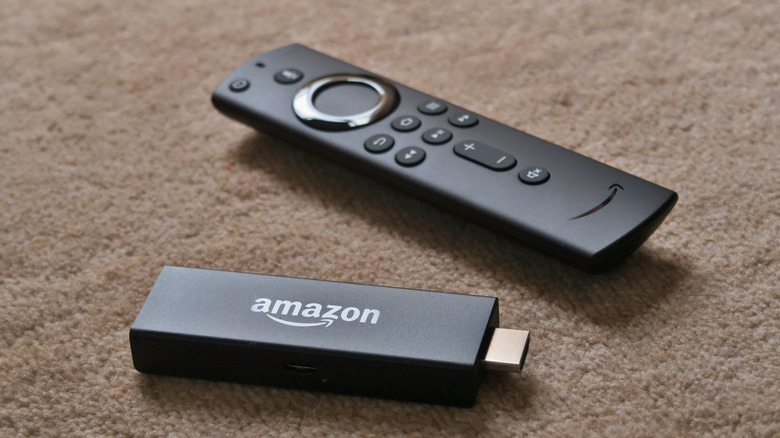
One of the drawbacks of an Amazon Fire TV Stick is the limited storage that it comes with. Even the 2025 iteration of the Amazon Fire TV 4K Plus only comes with 8 GB of built-in storage. After the operating system and pre-installed apps are taken into account, you're often left with even less space; your remaining storage can fill up quite quickly even you install only a few larger apps or games. The result? Poor performance. Your user interface can lag, crash, or sometimes even fail to install software updates.
The micro-USB port can become a lifeline in such cases. With the correct OTG adapter attached to it, you can connect a USB flash drive and expand the storage capacity of your device. Newer Fire TV Sticks have made the process even simpler by eliminating the need to do any advanced systems configuration: All you need to do is plug in a USB drive, as the Fire TV Stick will automatically detect it and ask if you would like to format the drive to be used as internal storage. If this interests you, MMtech Online's list of some of the largest-capacity external USB drives is a great place to start.
This is an ideal solution for anyone who wants to maximize your ability to enjoy your streaming device. This way, you get more space for apps and games to install and still have extra breathing space for the Fire TV Stick. If you're particularly data-conscious, you can even migrate all of your apps to this externally connected USB device and keep the streaming stick's internal storage exclusively for the needs of the Fire TV OS.