

5 Video Game Graphics Settings You Can Turn Off Without Hurting Visuals
Gamers face a delicate balancing act when optimizing their games. Luxurious graphics come at the cost of performance, forcing players to choose between frame rate and visuals. I've been a PC gamer for nearly a decade (well, unless you count my endless hogging of the family computer as a kid), and these days I'm running something pretty close to my dream rig, albeit with an older GPU. As my graphics card ages, I'm forced to make more difficult choices when choosing my game settings in new titles. But with common computer upgrades now painfully expensive and the RAM-pocalypse in full swing, it's time for gamers like me to stop thinking about hardware upgrades. Instead, our focus should be on squeezing every last bit of performance out of our current rigs.
Whether you're running with the latest hardware or still getting by with an RTX 3060, one of the best ways to optimize your gaming performance is by tweaking in-game graphics settings. Some features add to your system load without much visible benefit to your gameplay, and turning them off will let you eke a few more frames per-second out of certain titles without ruining your graphics.
To that end, I've rounded up a handful of settings that almost no gamer needs to have enabled and which can be disabled without affecting a game's graphical fidelity. While these tips are primarily for PC gamers, many apply to console games, too. From disabling unnecessary filters meant to make games feel like movies to turning off frame-related features that only add input latency to most systems, here are five video game graphics settings you can turn off without hurting your game's visuals.
Turn off VSync in games if you have a G-Sync or FreeSync monitor
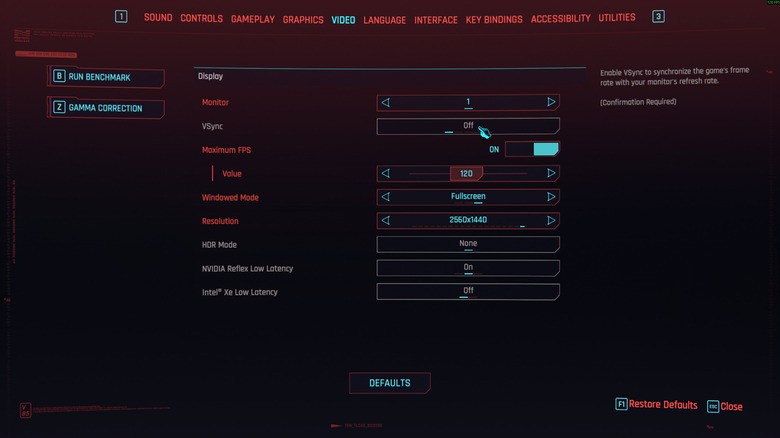
Most games these days have a setting called VSync, which purports to prevent screen tearing (when part of your screen displays a frame before the rest of the display has caught up, resulting in what looks like a break in the image). Sometimes, it is turned on by default. This setting can genuinely help prevent graphical issues in some cases, but you should disable the VSync setting in your games if your monitor supports a variable refresh rate technology like Nvidia G-Sync or AMD FreeSync. VSync will conflict with the GPU-side anti-tear technology and introduce notable latency into your gameplay.
As covered in our guide to optimizing your gaming monitor for the best frame rate, the ideal way to configure your game is to cap frames at a hardware level with VSync disabled in-game. In your GPU settings app (the Nvidia App for GeForce owners and the AMD Adrenalin Software app for Radeon owners), enable your monitor's GSync or FreeSync capabilities. Many FreeSync monitors are also G-Sync capable, so check your monitor's spec sheet to be sure. You should also double-check that your refresh rate is set to your monitor's native refresh rate in Windows 11's display settings.
Next, open your game and disable VSync from in-game settings. If your game has a frame rate cap, set it to a few frames lower than your maximum stable frame rate. For example, if you're consistently getting 145 FPS with your desired settings on a 180 Hz monitor, setting the frame rate cap to 140 FPS will ensure a more stable experience without any dropped or torn frames.
Motion blur can be distracting
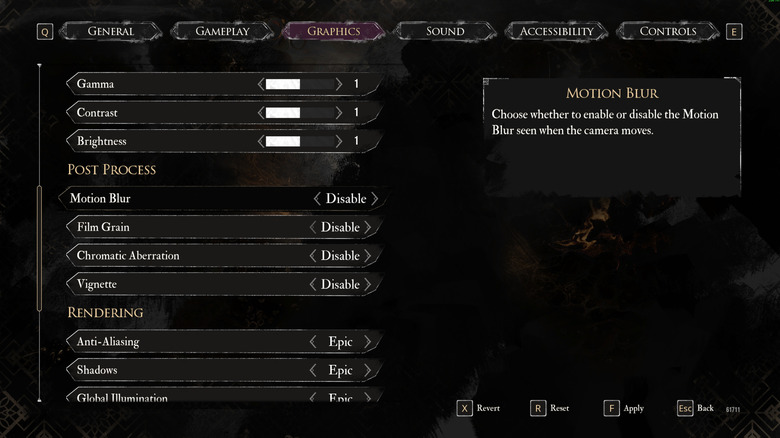
Many games include a setting called motion blur, and you can safely turn this off without impacting your game's graphical performance. In fact, many gamers will find that the game becomes easier with motion blur turned off. That's because all this setting usually does is apply blur to the edges of the image while you move around in the game. It is meant to simulate the way the human eye or a film camera works. When we move in real life, especially at high speed, objects in our periphery begin to trail and blur. This helps us fixate on what's directly in front of us, which is great for real-life scenarios. Motion blur shows up in many videos, too, because cameras capture one frame at a time: Movies play back at 24 FPS, for example, which means that nearly every frame will have some blur.
At high frame rates, video game motion blur is simply adding a human or camera limitation to a digital environment. When enabled, it can be harder for players to spot enemies approaching from the side, or make them more likely to miss a valuable item on the ground. Your eyes will still do their job, focusing on what's most important to your brain, so there's no need to make the computer do the same thing for you.
The exceptions are if you're playing at lower refresh rates or if you find yourself getting motion sickness with the setting turned off. You can play around with turning it on and off to get a sense of what's best for you, but a good rule of thumb is to turn it on when you're playing a game running below 60 FPS.
Film grain can make your graphics look worse
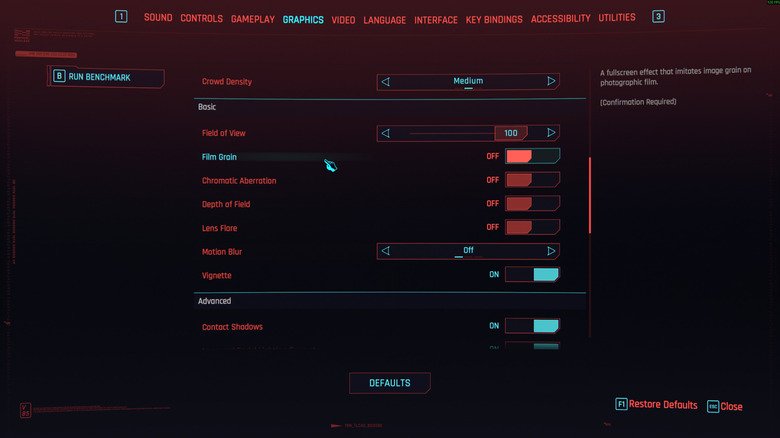
The common inclusion of film grain in modern titles seems to suggest that games wish they were movies. The film grain setting found in everything from "Cyberpunk 2077" to "Baldur's Gate 3" doesn't add anything to your gameplay or graphical performance. It simply adds a filter that replicates the look of film, transferring the aesthetic of a movie to your video game. In doing so, it adds a fuzzy appearance to games.
But here's the thing: a video game is not a movie, and it wasn't shot on film. Ironically, many films that have film grain these days were shot on digital and had noise added after the fact. It's as if the media industry is ashamed of technological leaps in visual fidelity. Video games like "The Last of Us" or "Indiana Jones and the Great Circle" may, at times, pretend that they are cinematic, but no number of motion-captured cutscenes will make that the case. Games are their own form of art, valid on their own merits. Even if applying a grain filter could transfer the prestige of film to a game, it would not be necessary. Perhaps it sometimes helps to patch over imperfections, but only by slightly degrading a game's graphics.
If you enjoy the look of the film grain filter on your games, then by all means, leave it on. But you will not be affecting your graphics if you turn it off, and you might discover that your games look even better that way. Many gamers enjoy the vibrant artificiality of video game graphics and appreciate the thousands of hours of work that went into crafting them. Turning off film grain will let you see that work in all its glory.
Chromatic aberration can be a headache
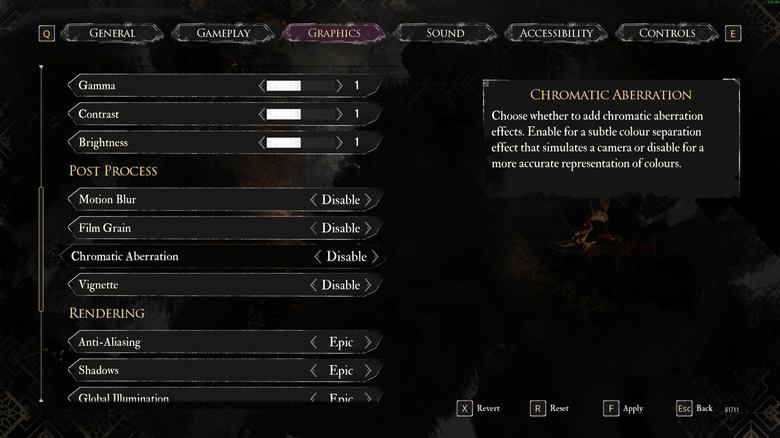
Yet another video game setting that aims to ape the aesthetics of cinema is chromatic aberration. Unlike film gain or motion blur, chromatic aberration is not an inherent property of video shot on camera, but rather an unwanted artifact created when a camera fails to correctly focus on high contrast areas of a shot. The result is a band of color along the edges of objects in the resulting photo or video. It is associated not with high-end projects like movies, but rather with low-budget productions. For instance, it was a common trait of home video back when every suburban dad was toting a handheld digicam.
These days, in video games and elsewhere, it is usually implemented as a stylistic choice. One example is the music video for A$AP Rocky's "Praise the Lord," [warning: strong language] where chromatic aberration is applied liberally to enhance the video's psychedelic and DIY aesthetics.
So, why does this effect appear in video games? Since the answer is presumably not, "To ruin them," it must be because developers honestly think there are players who want the line work in their games to become a hazy mess of blue and red. Even when it comes to the dreaded film grain effect, there's an argument to be made that a bit of grain and crackle helps smooth over the uncanny valley effect of facial animations on characters. But chromatic aberration has no such redeeming qualities. The majority of players will benefit from turning it off, as it has no impact on performance, and most games will look better in its absence.
Depth of field can be turned off, but some prefer it
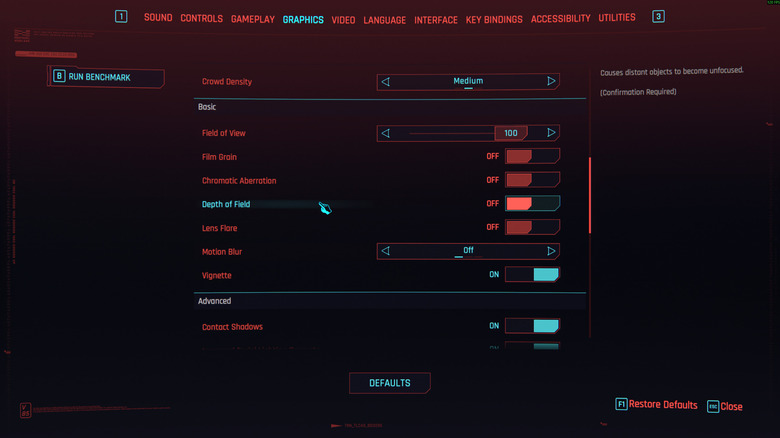
Yet another graphics setting mainly there to replicate things your eyes and brain do automatically in real life, or things that film cameras do, is depth of field, which adds blur and sometimes bokeh to areas of a game that are not being focused on. If, for instance, your character is standing on a large map with a mountain in the distance and trees dotting the landscape, the tree nearest you might be in focus, while those further back are blurry.
This is meant to mimic the way our vision works. Try to look at objects around you without breaking your focus away from the screen you're reading this on, and you'll see what I mean. Or, look out a window to focus on an outside object, and you'll notice that the room you're in becomes blurry. Similarly, cameras work the same way. Open your phone's camera and focus it on a close-up object, and you'll likely find that the background will become blurry.
For some gamers, depth of field is unnecessary and annoying. It simply gets in the way of letting them see everything going on onscreen. Much like with motion blur, your brain will still create a depth of field when looking at a video game because your eyes will focus on certain elements. For others, not having depth of field can feel unnatural and visually chaotic. However, leaving depth of field turned on can impact a game's performance, especially on older hardware that isn't optimized for newer depth rendering techniques. You should compare how your games look and feel with depth of field turned on and off, then choose for yourself.