

New Roku Feature Eliminates The Worst Part Of Finding Something To Watch
Roku started with selling streaming sticks but has evolved into one of the biggest smart TV brands you can buy from. The $25 Roku Streaming Stick is one of the cheapest and quickest ways to convert any TV into a smart one. It brings you access to on-demand platforms like Netflix and Amazon Prime Video, in addition to free TV channels. All streaming devices and televisions by the company run Roku OS.
Unlike many of the competitors like Amazon's Fire OS or Google TV, Roku OS isn't based on Android. It's Roku's proprietary operating system that runs on Linux. Though you lose app sideloading capabilities, what you do get is a snappy experience without much clutter. Roku OS has been designed to get you to your shows or movies as fast as possible. It receives regular automatic software updates, and a recent one has added a feature that makes it easy for Roku users to find and watch new content.
Roku OS 15.1 brings a new "Subscriptions" menu at the left, which houses a couple of things. It curates a list of trending movies and TV shows across all streaming platforms you're subscribed to. You can also resume titles through the "Continue Watching" list. There's a "Newly Added" section as well, which is going to make content discovery much simpler.
How to access the new subscriptions menu on Roku
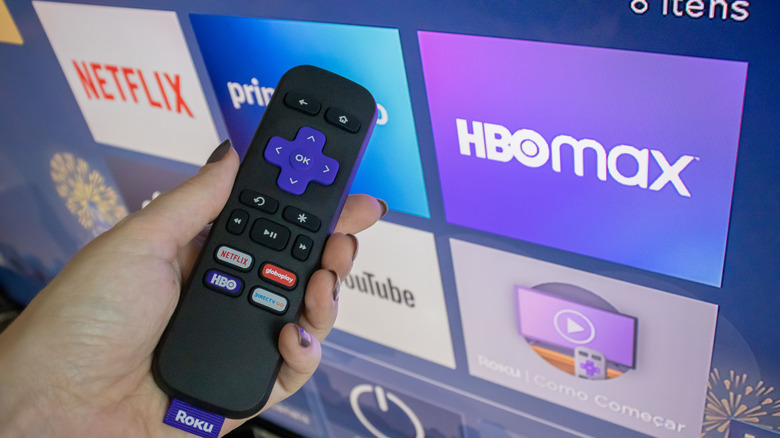
Like most other elements in Roku OS, the subscriptions menu is a click away. You can find it on the left with the rest of your options. This tab automatically grabs titles from all the streaming platforms you're subscribed to. This way, you don't have to shuffle between Netflix and Hulu just to find something new to watch. Besides being a time saver, this feature helps with analysis paralysis when you can't decide what show or movie to watch next.
The subscriptions menu should have a "New" label next to it if it's your first time accessing it. If you cannot find this menu on your Roku device, it likely has a pending software update. Typically, software updates are installed automatically in the background, but you might sometimes need to update your device manually. Follow these steps to do so:
- On your Roku remote, press the home button.
- Navigate to Settings > System > Software Update.
- Select "Check Now" and wait for your Roku device to scan for new updates.
- Wait for updates to be downloaded and installed.
Your Roku device will then reboot automatically with the updated version of the software. Head to the home screen, and you should now spot the new subscriptions tab. If you're subscribed to multiple streaming platforms, you might appreciate this new dynamic hub of content. Another tip to get the most out of your Roku device is to rearrange or clean up items on your home screen.