

6 Apps You Should Be Using If You Work From Home In 2026

Working from home is awesome. We all learned that during the pandemic, when the majority of work went remote. We're nowhere near that number these days, but it's still higher than pre-pandemic levels. Not only did it give people a far healthier work-life balance and save them a crap ton of money on transportation and meals, but even the Bureau of Labor Statistics couldn't deny it made us more productive. WFH is the best, case closed. If you're free from the confines of a work machine running an operating system you might not even use, you're free to use the productivity apps you need to get the job done.
I've been working from home for a while, and I think I've mostly settled into a software rut of sorts that has helped me get more done faster and easier. I've covered extensively the best Mac apps to improve your experience, and the "ride-or-die" apps every Windows user should have, many of which are productivity apps that I use on a daily basis. While my primary recommendations are for macOS software, every option on this list has a Windows or Linux alternative that will get the job done.
Clipboard manager

If you find yourself frequently copying and pasting throughout the day, you need to start using a clipboard manager. Clipboard managers store everything you've copied in one convenient place that you can summon with a shortcut, instead of having to go back to re-copy a particular item. This feature is built into macOS and Windows. On macOS, open Spotlight with Command + Spacebar and then the clipboard with Command + 4 or a click. On Windows, press the Windows key + V. Clipboard history on Windows is turned off by default, so make sure it's enabled before you copy like there's no tomorrow.
Both are solid options, but they're more like better-than-nothing solutions. The world of third-party clipboard managers is a beautiful thing, and most people would benefit from one. Maccy is the king of macOS clipboard managers, at least in my opinion. One simple keystroke brings up a searchable list of clipboard items that, with another quick keystroke, can be re-copied or instantly pasted to your cursor's current location. It only costs $9.99 through the App Store and has worked virtually bug-free for me. There are other macOS alternatives, like PastePal, and many apps that incorporate a built-in clipboard manager, like Raycast.
On Windows, you can try the excellent (and free) Pasteboard app. It has a sleeker, more Windows-suited interface that works great if you're going to be copying media, like images. Linux users might try CopyQ, which also supports macOS and Windows. The only complaint I have about CopyQ is that the interface feels a bit dated. Another option is to just use a pastebin, like PrivateBin, which is basically just a big web-based text field where you can copy and paste anything you want as you work.
Dictation apps
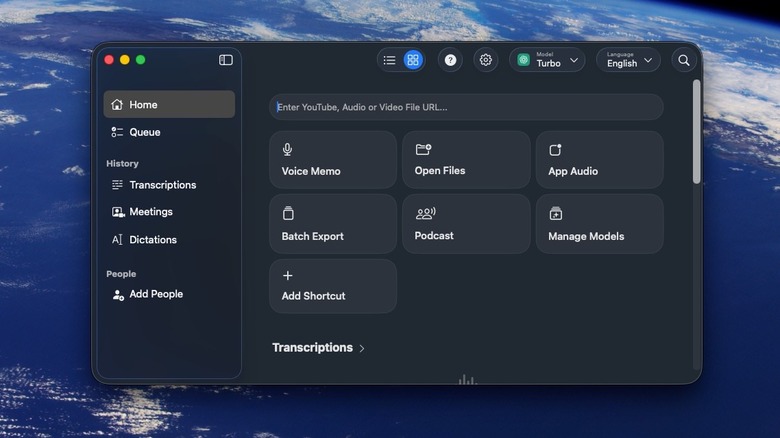
Spending long hours clacking away at a keyboard — even with good posture, wrist rests, and a mechanical keyboard — is a great way to get RSI, a debilitating injury that could make it excruciatingly painful to do even something as simple as flipping on a light switch. Unless you're penning the next great American novel, most of the things you write on your computer (emails, messages, etc.) are simple enough that they could be dictated. Dictation software in recent years has gotten incredibly good and affordable, enough that, frankly, you should dictate virtually everything to spare your fingers and produce words much faster than you could type them. It takes a while to train your brain to dictate things as well as you can type them, but it's easier than you think.
Both macOS and Windows have a built-in dictation feature that handles very basic stuff, especially anything that doesn't have complex vocab and/or personalized and esoteric words. MacBooks have a dictation key, but if you're using an external keyboard, you can set it to a shortcut or a double press of Command or Control. Windows Dictation works with the Windows Key + H.
There are some great free options, too. On macOS, MacWhisper is an app I could not live without; it supports ultra-fast and accurate Whisper and Parakeet dictation models that run locally on your device. macOS has tons of alternatives to MacWhisper, but many of them only offer a subscription model. The best option on Windows is Nuance Dragon, which sadly costs hundreds of dollars and has an interface that looks like it hasn't gotten an update since Windows 95. I'd recommend something like WhisperWriter instead. Linux users should try Speech Note. Google Docs has built-in dictation too, and since it's web-based, it works anywhere.
Screenshotting tool

For screenshots, nothing is stopping you from hitting Print Screen and then copying the result where you need it. That said, both macOS and Windows have great built-in screenshotting tools that make it easy to capture exactly what you want, quickly and easily. On macOS, either bring up the entire screenshot app with Shift + Command + 5, or use Shift + Command + 3 or 4 to capture the entire screen or part of the screen (and add the spacebar to capture a single menu), respectively. Here is our guide covering every way to take a screenshot on Mac. The Windows 11 Snipping Tool does most of that, plus options to annotate, add captions, edit text, and more.
Of course, we're not here to use what's built in. We're here to suggest third-party options that take things to the next level. The two heavyweights on macOS are Shottr and CleanShot X. I like Shottr because it's free to use, lightweight, and packed to the gills with features. Shottr's paid upgrade is priced incredibly well, too, at a $12 one-time license. CleanShot X isn't free, but if you do a lot of screenshotting, screen capturing, and editing, then it's probably a cost that pays itself off tenfold in productivity dividends. It costs $29 for a one-time license, but this only guarantees a year of software updates. You'd need to pay $19 each year thereafter to keep getting all the latest features and cloud storage.
I admit, on the Windows front, there isn't much in the same league as Shottr and CleanShot X. ScreenPal is my personal recommendation. It's free to use provided you never record for longer than 15 minutes, after which you'd need to pay a minimum of $4 a month to get the Pro features.
Link Cleaner app
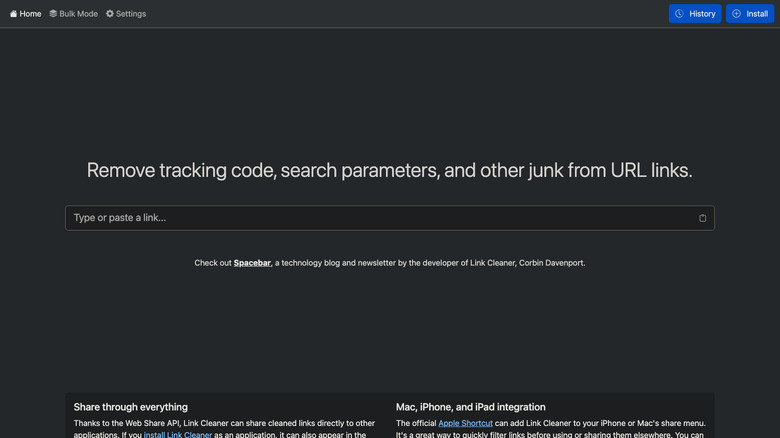
Working from home, you likely find yourself sharing a ton of links. But the problem with links is that advertisers and data-mining companies slip in a lot of junk that they hope you won't notice, such as tracking information that tells them who opened a link you shared. Unless you're using one of the most secure browsers for maximum web privacy, like Tor, it's good practice to clean links — the ones you receive and the ones you send.
The best all-rounder for anyone — macOS, Windows, Linux, and even mobile devices — is Link Cleaner. The web-based link cleaner does it all, and does so ad-free. It also allows you to paste in a batch of links and clean them in one click, or shorten links for certain websites, like YouTube. If you'd rather not keep it pinned as a tab, you can install it as a web browser app or add it to the macOS Share Sheet. If you end up using this one frequently, consider donating, as it does not monetize itself otherwise. If your concern is more about opening dirty links from coworkers, you can download ClearURLs as a web extension to clean pasted-in links automatically in Firefox and Chromium-based browsers.
Personally, I prefer an app that's always within a one-click distance rather than a web page or an extension. On macOS, I've been using the excellent Clean Links app. It lives in the menu bar, and with one click cleans the link and copies it to your clipboard so you can paste it. Better yet, you can give it clipboard-monitoring permissions to automatically clean all links as you copy them.
File transfer app
Sure, you could send someone a file by either dropping it in an email or messenger, or linking to the cloud storage download page it's hosted on. But there are better ways. Regardless of which operating system you use, my instant, no-notes recommendation is Blip. It's awesome. No other app, in my humble opinion, is as fast, easy, and convenient for sending files. On top of that glowing recommendation, it's free. It's a great choice whether you're sending files to yourself on other devices or to co-workers, though bear in mind that for commercial usage, you should be paying for it. Maybe convince your boss to put it on the corporate tab for everyone to use.
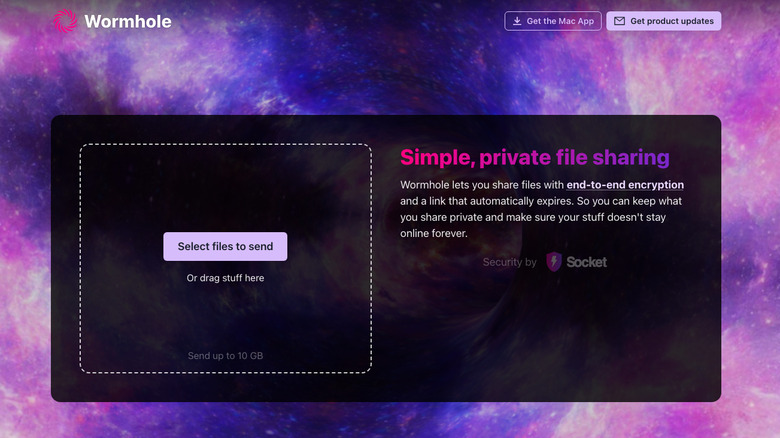
If that last bit disqualifies Blip for you, then worry not. The list of file transfer alternatives is long and diverse. My recommendation for sharing files on a local network is LocalSend. If you don't want to download an app, there are a ton of browser-based options. My personal recommendation is Wormhole. Other options include SwissTransfer and Send. Despite being free to use, these services support big file sizes and end-to-end encryption. I could make a list as long as the day, but these should get the job done nicely.
If your smartphone factors into your workflow, there are plenty of options beyond Android's Quick Share and Apple's AirDrop. Several of the options we've mentioned, like Blip and LocalSend, support Android and iOS. Check out our list of the best mobile apps for sharing large files.
File compression app
While we're on the subject of sending files, how often do you send files in an uncompressed format, i.e. not in a .zip file? At some point, you've likely been unable to send multiple files (or a folder), you've run into file size limitations on email attachments, or your file transfers have run slowly because they're so big. All of this can be solved by compressing files. Zipping up files has been a thing for ages, yet anecdotally, I see very few people ever actually zip files before sending them. I'd assume that the average person perhaps feels a bit intimidated by the built-in options on macOS and Windows, or that the options are just inconvenient enough that it's not worth the bother. Fortunately, there are a whole bunch of apps that take away any excuses not to compress files for transit.
macOS users, you're going to love Keka since it's arguably the easiest and fastest way to zip files. Simply drag whatever you're zipping onto Keka's icon on the dock, and you're done. It's free, but please consider the paid Mac App Store version or donating. It supports a huge range of formats, too, and can extract from even more. Password encryption and file splitting are also supported. For Windows users, 7-Zip never fails to disappoint. It integrates into your context menu and is blazing fast compared to alternatives like WinRAR — at least in my testing. It also works on Linux.
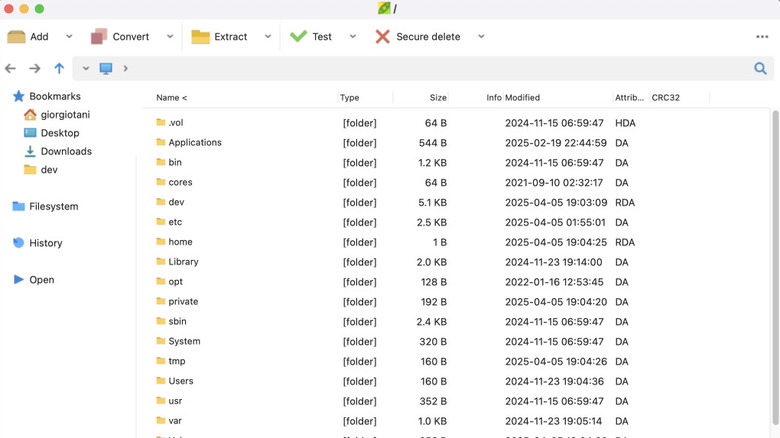
If neither of those options appeals to you, PeaZip is the best all-rounder on Windows, macOS, and Linux. Though it'll work great for everyone, it's especially great for power users since it supports the command line and adds extra security features like two-factor authentication. It's designed to be lightweight, portable, and powerful.
How we chose these apps

I've been working from home for years now, as stated earlier, and I've streamlined and increased my productivity thanks in large part to the apps on this list. Rather than address apps specific to one type of work, we zoomed out to focus on everyday clerical tasks: writing reports, sending emails, working with documents — things that most WFH workers do — anything requiring a lot of typing, a lot of copying and pasting, and a lot of working with (and sending) basic files. The apps we chose generally stay out of your way and don't overwhelm you with features.
It was important to us to provide quality apps that work on multiple operating systems. A lot of work-from-home employees may be using personal devices, like a personal MacBook, when company PCs run Windows. This article also assumes you have more freedom to install software and use your device as you please. We tried as hard as we could to find free software, but some of the best options on this list (like Maccy) require you to pay. Still, we'd argue the productivity boost they provide (and the opportunity to support good software in the long term) is worth the cost.